
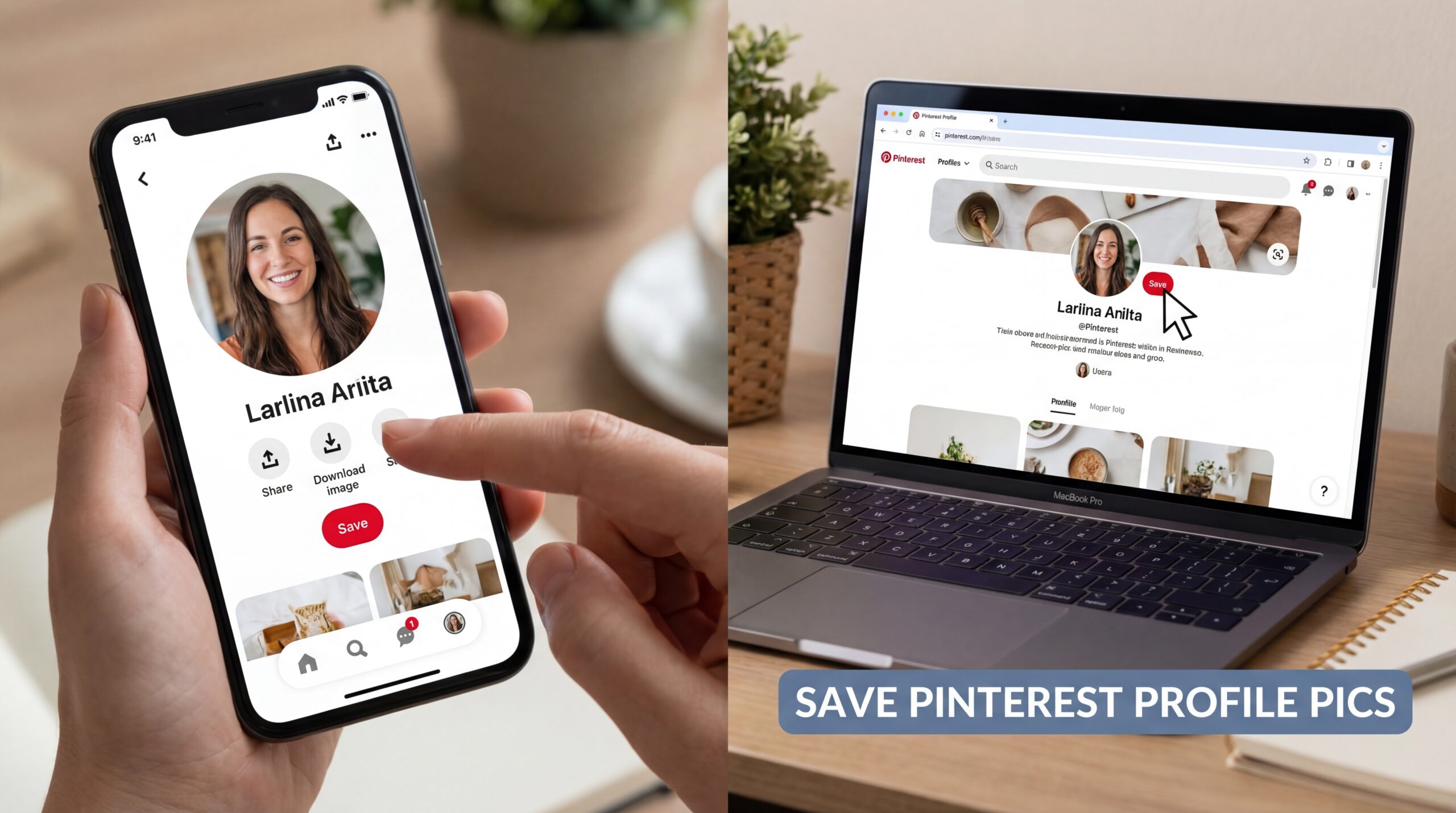
(High-Quality – Step-By-Step Guide That Works)
I didn’t set out to download a Pinterest profile picture.
I just wanted the logo.
That’s how it always starts.
A designer I follow had a clean, minimal profile photo. Perfect reference. I tapped it. Long-pressed. Saved.
And what showed up in my Photos app looked like a fax from 2004.
Pixelated. Soft. Useless.
That’s when you realize something important:
Pinterest never shows profile pictures at full quality by default.
What you see is a resized, aggressively compressed preview.
If you save that, that’s the worst version you’ll ever get.
But the high-quality version?
It exists. Pinterest just doesn’t surface it politely.
Let’s fix that.
Why Pinterest Profile Pictures Look Bad by Default
This isn’t a bug. It’s intentional.
Pinterest profile pictures are:
- Displayed very small
- Heavily compressed
- Served at multiple resolutions depending on context
Pinterest assumes:
- You’re browsing, not extracting
- Speed matters more than clarity
So you’re shown:
- A cached thumbnail
- Optimized for loading, not saving
- Absolutely not meant for reuse
The original uploaded image is stored separately.
Accessing it doesn’t require hacking—just knowing where to look.
What “High-Quality” Actually Means Here
Let’s be precise.
A high-quality Pinterest profile picture means:
- Original upload resolution (often 400×400, 600×600, or higher)
- Clean edges
- No extra compression
- No UI baked into the image
- Suitable for reference, branding, or design work
It does not mean:
- Upscaled blurry images
- Screenshots
- Zoomed thumbnails
If it looks soft when you zoom in, it’s wrong. Period.
The Biggest Mistake Everyone Makes
Let’s call it out clearly.
Saving the Profile Picture from the App
You tap the photo.
You long-press.
You save.
That file is:
- A display thumbnail
- Already downscaled
- Already compressed
- Often under 200×200 pixels
No tool can restore detail that never existed.
High quality doesn’t come from “enhancing.”
It comes from grabbing the source image.
The 3 Real Ways to Download Pinterest Profile Pictures
Despite what the internet claims, there are only three practical methods:
- Browser inspection (most reliable)
- URL size modification (fast once you know it)
- Online profile picture downloaders (hit or miss)
I’ll walk you through all three—and tell you which ones I actually trust.
Method 1: Download High-Quality Pinterest Profile Pictures Using a Browser
(Best & Most Reliable)
This is the gold standard.
No upscaling. No guessing. No junk.
You’re accessing the same image Pinterest uses internally.
Step 1: Open Pinterest in a Browser (Not the App)
This matters.
Use:
- Safari
- Chrome
- Firefox
- Desktop or mobile browser
Go to the user’s profile page.
Step 2: Open the Profile Picture Itself
Desktop:
Right-click the profile image → Open image in new tab (or Inspect)
Mobile:
Long-press the image → Open in New Tab (if available)
If you don’t see that option yet, keep going.
Step 3: Look at the Image URL (This Is the Key)
When the image opens in its own tab, check the URL.
You’ll usually see something like:
…/75x75_RS/filename.jpg
…/280x280_RS/filename.jpg
That number is the served resolution.
Step 4: Manually Increase the Resolution
Here’s the trick Pinterest never explains.
Replace the size in the URL with a larger value:
400x400600x600
Or sometimes remove the size entirely.
Example:
280x280 → 600x600
Press Enter.
If the image reloads and looks sharp when zoomed—you’ve got the good one.
Step 5: Save the Image
Now simply:
- Right-click → Save Image
- Long-press → Save to Photos
This version will be dramatically better than anything saved from the app.
Method 2: Use Pinterest’s Image CDN Logic
(Fast Once You Know the Pattern)
This method is for pattern-spotters.
Pinterest image URLs often include sizes like:
75x75140x140280x280
Those are not originals.
Try replacing them with:
600x600originals(sometimes works)
It won’t always succeed—but when it does, it’s instant.
When This Fails
- The original upload was low resolution
- Pinterest capped the max size
- The image was heavily cropped
Still worth trying. Takes five seconds.
Method 3: Online Pinterest Profile Picture Downloaders
(Convenient, but Unreliable)
Yes, they exist.
No, I don’t love them.
They usually work by:
- Scraping the profile page
- Guessing the largest available image
- Returning whatever they find
Pros
- Fast
- Beginner-friendly
- No manual URL editing
Cons
- Often return medium-quality images
- Sometimes just upscale thumbnails
- Ads, pop-ups, privacy concerns
- Inconsistent results
If you use one:
- Zoom in after downloading
- Check actual pixel dimensions
- Compare with the browser method
Fine for casual use. Not for precision.
What About Apple Shortcuts on iPhone?
Shortcuts are fantastic for videos.
For profile pictures? Mixed results.
Some can:
- Fetch profile images
- Attempt higher-resolution versions
But Pinterest profile photos don’t expose metadata as cleanly as videos.
In practice, manual browser URL editing still wins.
Sometimes old-school is best.
How to Confirm You Actually Got the High-Quality Version
Don’t trust vibes. Check facts.
Verify:
- Image dimensions (Photos → Info)
- Zoom clarity
- Edge sharpness
- Text or logo crispness
A real high-quality profile picture:
- Holds detail when zoomed
- Has clean edges
- Doesn’t fall apart under inspection
If it only looks “okay,” it’s probably still resized.
Common Issues (And What They Mean)
The Image Won’t Load at Higher Resolutions
That usually means:
- The original upload was small
- Pinterest didn’t store a higher-res version
You can’t invent pixels.
The Image Looks Cropped or Different
Pinterest crops profile images into circles.
The original may:
- Be square
- Include more background
- Look different than the preview
That’s normal.
The Saved Image Is Still Blurry
Double-check that:
- You didn’t save a screenshot
- You actually changed the URL size
- You’re not zooming a thumbnail
Nine times out of ten, this is user error—not Pinterest.
Ethical Reality Check (Quick but Important)
Generally acceptable uses:
- Reference
- Identification
- Design inspiration
- Personal use
Not acceptable:
- Impersonation
- Fake accounts
- Commercial reuse without permission
- Misrepresentation
A profile picture is part of someone’s identity or brand. Treat it with respect.
Why Pinterest Doesn’t Offer a Download Button
Same reason they don’t make video downloads easy.
Ownership changes behavior.
If users could easily:
- Download profile images
- Reuse branding
- Extract assets
Pinterest would lose some control over circulation.
So instead, they quietly downscale and move on.
Annoying—but logical.
My Opinionated Take
If quality matters:
- Don’t save from the app
- Don’t trust thumbnails
- Don’t rely on “enhancers”
- Go to the source, inspect the URL, change the size, save the real file
The first time takes a minute.
After that, it’s muscle memory.
Final Thoughts
Pinterest is phenomenal for discovery.
It’s terrible for extraction.
Profile pictures are a perfect example: the good version exists—you just have to ask for it correctly.
Once you understand how Pinterest structures image URLs, downloading high-quality profile pictures stops being a trick and starts being obvious.
And suddenly, you’re not squinting at blurry logos anymore.
If you want help with:
- Private profiles
- Mobile-only workflows
- Auto-detecting highest resolution
- Pinterest image sizes in general
Say the word.