
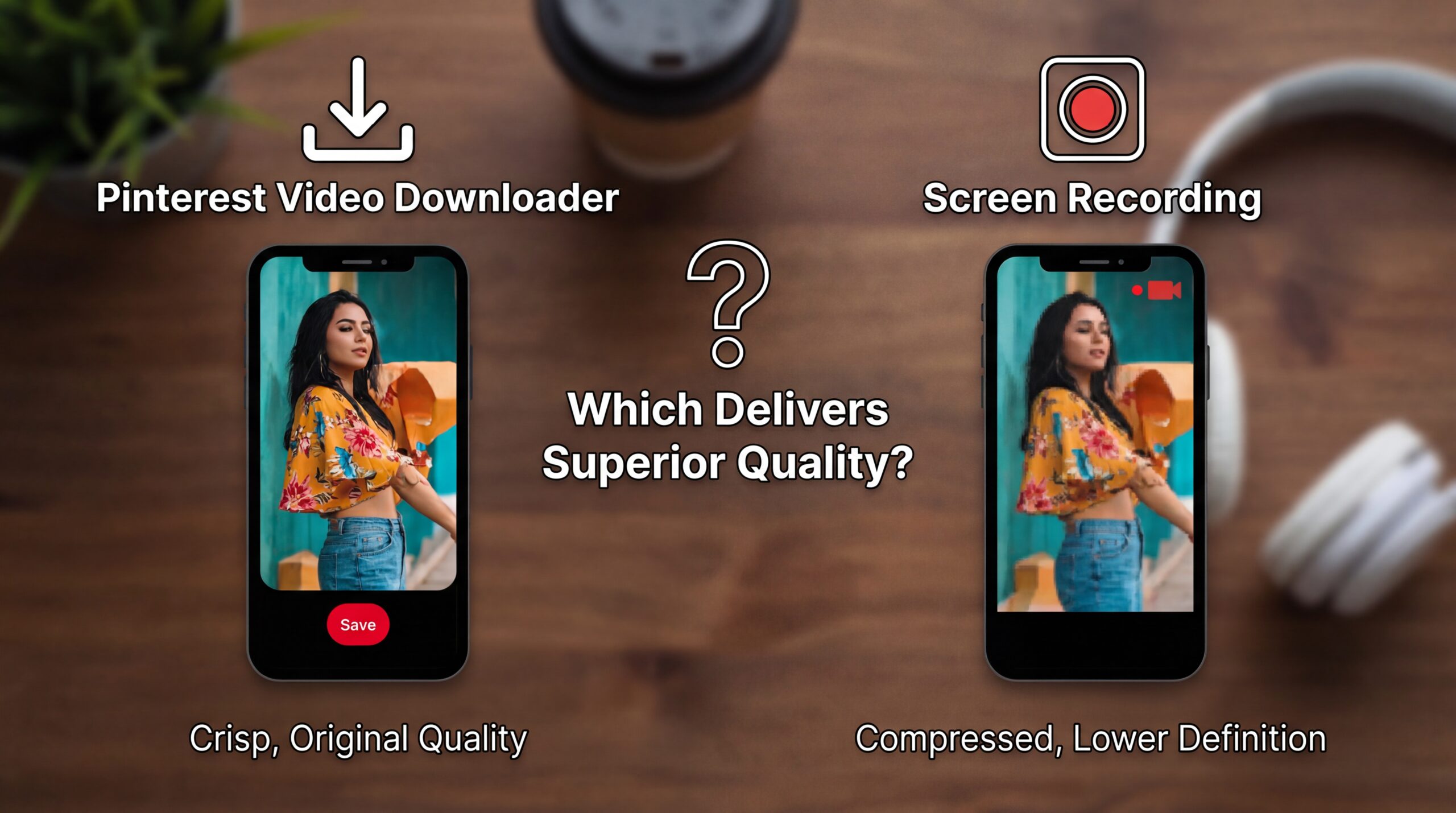
You know that late-night feeling. You are scrolling Pinterest, half asleep, when one video stops you completely. You know you will want it again offline, yet Pinterest offers no clear download button for it.
I refused to fill my iPhone with another app I would soon forget, which is why Shortcuts felt like such a relief.
Why Pinterest Makes This Feel Difficult
Pinterest is built to keep you inside Pinterest. It wants you to save a pin to a board, keep scrolling, and return tomorrow.
Saving a pin and downloading a video file are different things, and Pinterest treats them differently. Pinterest’s own help page describes its Download image option for some image pins and notes that downloading video pins is not currently possible through that built-in option.
Shortcuts offers a different route. It can take a copied link, work with a video-extraction step, and save the video file to Photos, without a jailbreak or developer mode.
First, Make Sure Your iPhone Is Ready
The original guide lists iOS 15 or later, with iOS 16 or later working best. A quick check now will save frustration later.
You will need:
- The Shortcuts app, pre-installed on most iPhones
- A Pinterest video link, copied correctly
- Permission for Shortcuts to save photos
- A few minutes to add and review a shortcut
Do not rush the review step.
Step by Step: Download a Pinterest Video With Shortcuts
Step 1: Copy the Pinterest Video Link
Open Pinterest and find the video you want. Tap Share, then tap Copy Link, and leave that link on your clipboard.
Copy the link for that exact pin, not a board or profile. The shortcut depends on the link you have just copied.
Step 2: Add a Pinterest Video Download Shortcut
Most people need not build a shortcut from scratch. Add a pre-built shortcut, briefly review what it does, and then run it.
If anything looks unclear, or asks for more access than saving a video to Photos, stop and choose a clearer shortcut. Once added, open Settings, then Shortcuts, and turn on Allow Untrusted Shortcuts if needed.
Step 3: Run the Shortcut
Run it from the Shortcuts app, or from the Share Sheet:
- Open Shortcuts, tap the shortcut, and let it find the copied link.
- Or return to the video, tap Share, scroll to More, and select the shortcut.
Your screen may flicker, or you may see a permission prompt. Allow only the permission that makes sense, then check Photos.
| Stage | What happens | What you do |
|---|---|---|
| Copy | The pin link is placed on your clipboard | Tap Share, then Copy Link |
| Add | A shortcut is added and reviewed | Check it, then allow it in Settings if needed |
| Run | The link is processed and the video is extracted | Run it from Shortcuts or the Share Sheet |
| Save | The video file is saved to Photos | Open Photos and play it once |
Behind the tap, the shortcut sends your link to a downloading endpoint, extracts the video, and saves it to Photos.
Shortcuts or a Downloader App?
Many downloader apps promise an easy answer, yet often bring ads, paywalls, tracking, or watermarks unless you upgrade. They can also crash just when you find the video you wanted.
Shortcuts is free, system-wide, and easier to inspect. You can see what it does and run it from the Share Sheet, without handing your browsing to another app.
When It Does Not Work
If the shortcut cannot find a video, the pin may be the reason. It may be an Idea Pin, restricted in your region, or affected by a change behind the scenes.
Try a different pin, and try the Share Sheet method if the clipboard method failed. A fresh link, copied carefully, solves more problems than expected.
If it saves a blank file, check photo permission at once. Go to Settings, Privacy and Security, Photos, and grant Shortcuts full access.
If the video has a watermark, it usually comes from the downloader service the shortcut uses, not Pinterest itself. Prefer a shortcut that pulls a direct video file, and avoid shortcuts routed through branded download pages.
Helpful Extras, Once the Basics Work
Some shortcuts can use the pin title as the filename, so you avoid a meaningless string of numbers. Some offer a quality choice, such as SD or HD, which helps if you are keeping a video for reference.
You can also run a configured shortcut with Siri. It may feel odd at first, but it becomes natural when your hands are busy.
Frequently Asked Questions
Do I need to install another app?
No. You use the Shortcuts app already on most iPhones, plus a shortcut you have added and reviewed.
Why must I allow untrusted shortcuts?
That setting allows shortcuts from outside Apple’s gallery to run. Use it only for a shortcut you have reviewed and trust.
Why did my video save as a blank file?
Missing photo permission is the most common cause in the original guide. Check Settings, Privacy and Security, Photos, and give Shortcuts full access.
Can I download every Pinterest video this way?
No. Some pins, including some Idea Pins and region-restricted videos, may not work, and Pinterest can change how its pages behave.
Disclaimer
This article is general information only, not legal advice. Downloading a video does not give you the right to repost it, claim it as your own, or use it commercially without permission.
Save videos only for personal reference where appropriate, respect the creator, and keep credit with the work if you share a link. If unsure whether a use is allowed, check the pin, the creator’s terms, and the tool before proceeding.
Related reading: How to Save Pinterest Videos to Your Camera Roll to Watch Offline and How to Download Pinterest Videos Safely and Legally.
Conclusion
Shortcuts will not fix every Pinterest video, and it should not promise to. It offers a calmer way to keep a video you genuinely want, without another app competing for attention.
Copy the link carefully, review the shortcut, and check Photos after the first save. Once that first video plays properly, the process feels less like a trick and more like a small, useful habit.